Usage Guide
Overview
ROBOT-RUNNER provides a comprehensive GUI interface for managing Robot Framework test executions, offering enhanced visualization, analytics, and reporting capabilities beyond the standard Robot Framework CLI tools.
Application Layout
The interface is organized into five main sections accessible via the left sidebar:
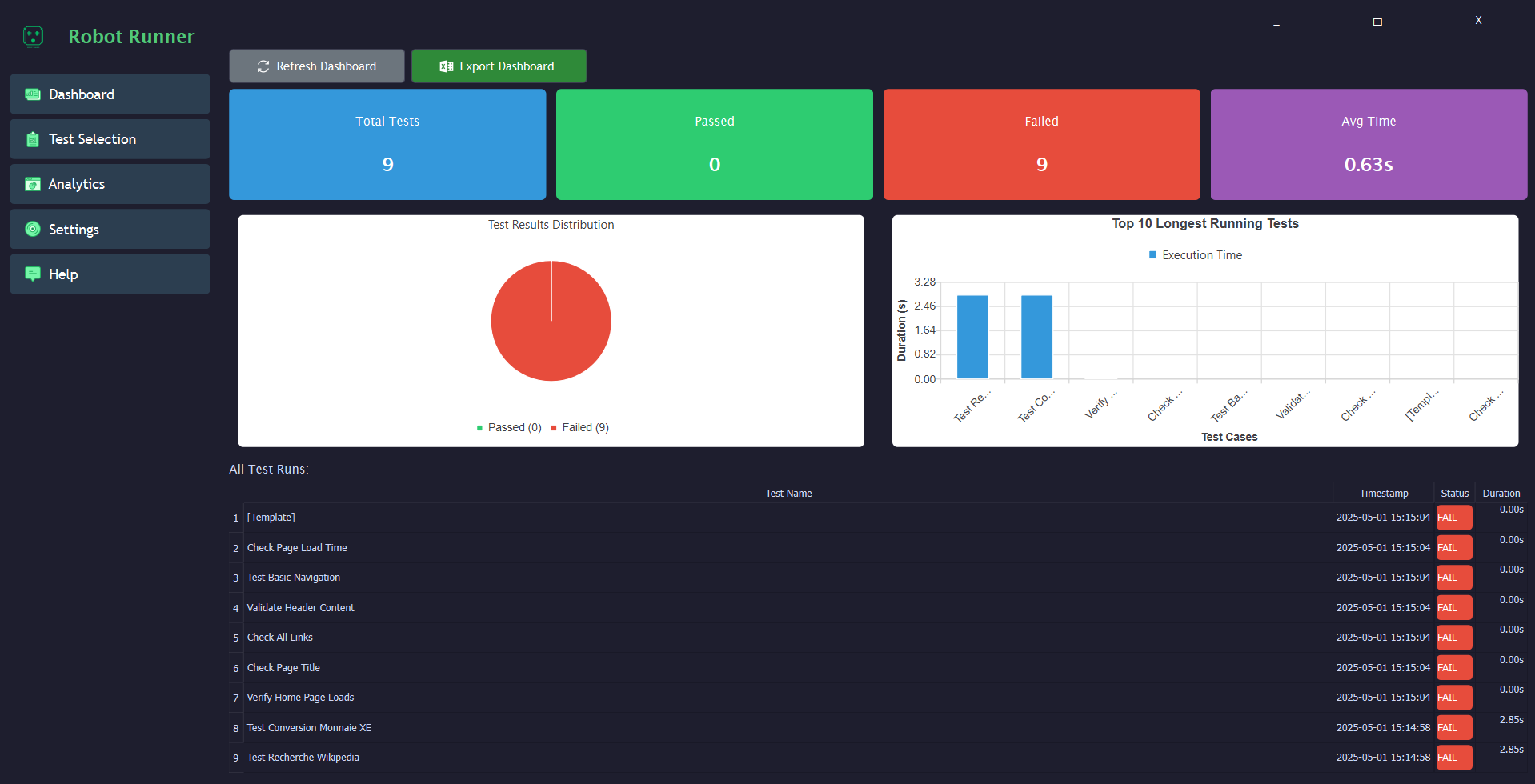
Dashboard Section
Key Metrics Panel
Total tests executed
Pass/Fail/Skipped counts
Total execution time
Average test duration
Visualizations
Result Distribution Pie Chart: - Shows percentage of passed/failed/skipped tests - Color-coded (green=passed, red=failed, yellow=skipped)
Execution Time Histogram: - Groups tests by duration ranges - Identifies performance outliers
Test Summary Table
Lists all test cases with columns: - Test name - Status (with color indicators) - Execution duration - Timestamp
Action Buttons
Refresh: Reloads current dashboard data
Export to Excel: Generates comprehensive report containing: - All dashboard metrics - Visualizations as embedded charts - Raw test data table
Test Selection Section
File Browser Panel
Directory tree navigation
Automatic detection of Robot test files (
.robot)Visual indicators for test file validity
Execution Controls
Select Folder: Choose test directory
Clear Results: Reset previous execution data
Run Tests: Start test execution with options: - Number of parallel processes (1-8) - Tag filtering - Test suite selection
Execution Summary
Real-time counter showing: - Total tests - Passed/Failed counts - Current status
Report Access
Open HTML Report: Standard Robot Framework report
Open Log: Detailed execution log
Export to Excel: Custom report with: - Test case details - Screenshots of failures (if configured) - Performance metrics
Analytics Section
Test Execution Trends
Line chart showing pass/fail rates over time
Configurable time periods (7/30/90 days)
Status Distribution
Stacked bar chart of test outcomes
Filterable by test suite/tag
Top Failure Reasons
Pareto chart of most common failure messages
Links to relevant test cases
Execution Time Analysis
Box plot of duration distribution
Identifies flaky tests (high duration variance)
Controls
Refresh: Update analytics data
Export Analytics: Excel report containing: - All charts as images - Raw data tables - Statistical summaries
Settings Section
Execution Settings
Default test directory
Parallel process count
Timeout thresholds
Environment variables
Reporting Options
Report generation preferences
Excel export settings
Screenshot capture configuration
UI Preferences
Theme selection (light/dark)
Font size adjustment
Layout customization
Help Section
Resources
Report Bugs: Link to issue tracker
Source Code: GitHub repository link
Documentation: User manual and API reference
Donate: Support options
Advanced Features
Custom Report Templates
Create and apply custom Excel report formats
Define which metrics to include
Auto-email reports (Enterprise feature)
Integration Hooks
Pre/post execution scripts
API endpoints for CI/CD integration
Webhook notifications
Data Export Formats
Excel (default)
JSON (for programmatic use)
PDF (for formal reports)
Comparison with Standard Robot Framework
Feature |
Standard Robot Framework |
ROBOT-RUNNER |
|---|---|---|
Interface |
Command-line only |
Graphical User Interface |
Real-time Monitoring |
Limited (text output) |
Visual dashboard with progress |
Reporting |
Basic HTML |
Enhanced HTML + Excel + PDF |
Analytics |
None |
Built-in visualization tools |
Historical Tracking |
Manual |
Automatic trend analysis |
Best Practices
Workspace Organization - Keep test cases in well-structured directories - Use consistent naming conventions
Execution Tips - Start with small test batches when debugging - Use parallel execution for large test suites - Review analytics regularly to spot trends
Reporting - Export reports after major test changes - Use custom templates for different stakeholders - Archive important execution results
Troubleshooting
Common Issues
Tests not appearing in selection: - Verify files have
.robotextension - Check file contains valid Robot syntaxPerformance problems: - Reduce parallel processes - Increase timeout thresholds
Reporting errors: - Ensure write permissions for output directory - Verify Excel is installed (for Excel export)